Apple Vision Pro • visionOS

Gravitas Dream
Cast people. Cast pets. Make a graphic novel.
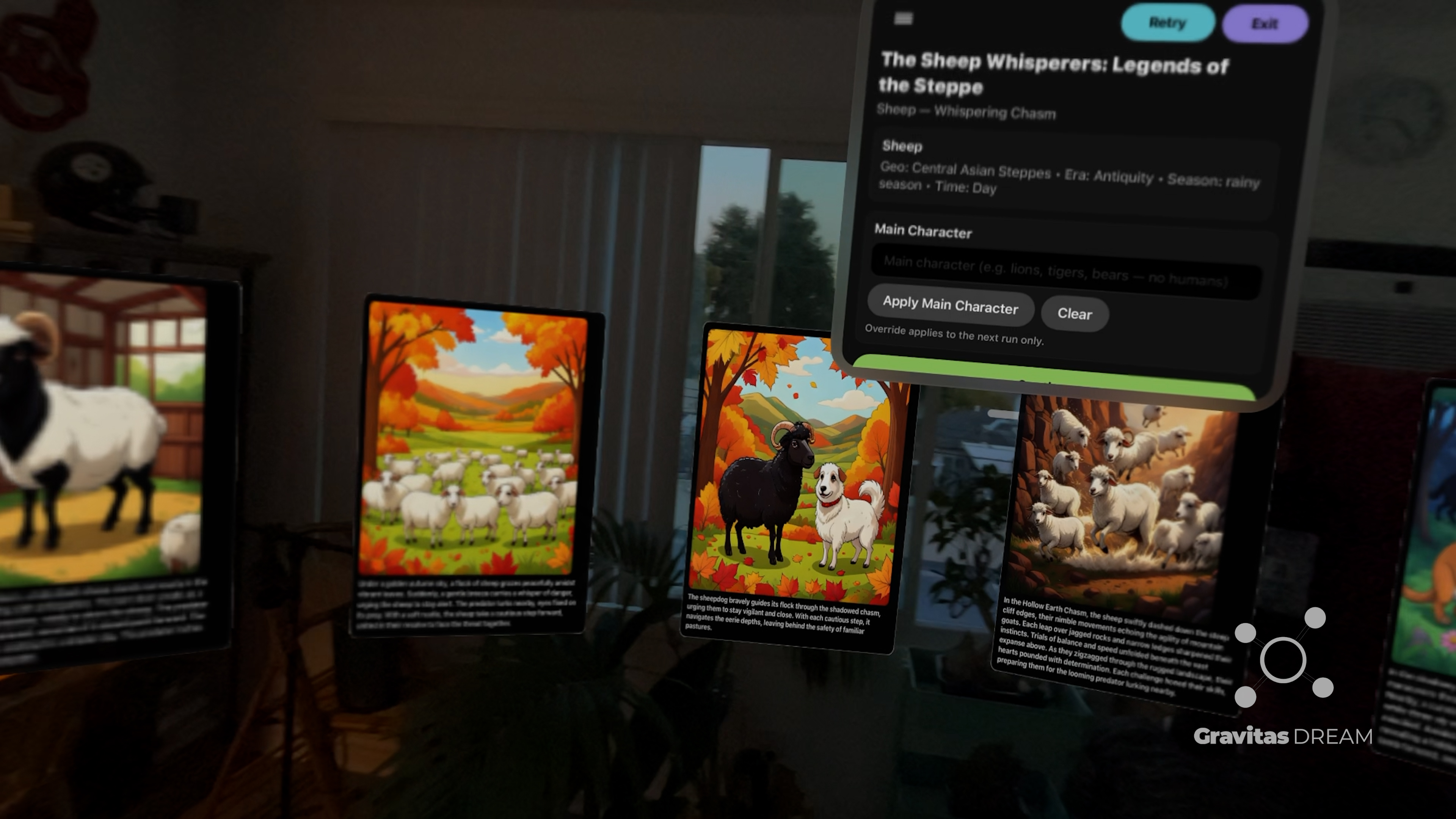
A premium on‑device story studio for Apple Vision Pro that turns your cast into an illustrated, chapter‑by‑chapter story—displayed as a curved wall of story cards you can scan like a gallery, plus simple 2D windows for precise control. Exports: PDF • Movie • Sora • Template.
Trailer
Trailer (YouTube)
Fact Sheet
Studio: Gravitas Discover
Platform: Apple Vision Pro (visionOS 26.1+)
Category: Multimodal graphic novel creator • story studio
Core loop: Cast → generate 8‑panel chapter → refine writing + visuals separately → export
Casting: People, pets, or original characters (supports reference images)
On-device AI: Apple Intelligence + Image Playground (where available)
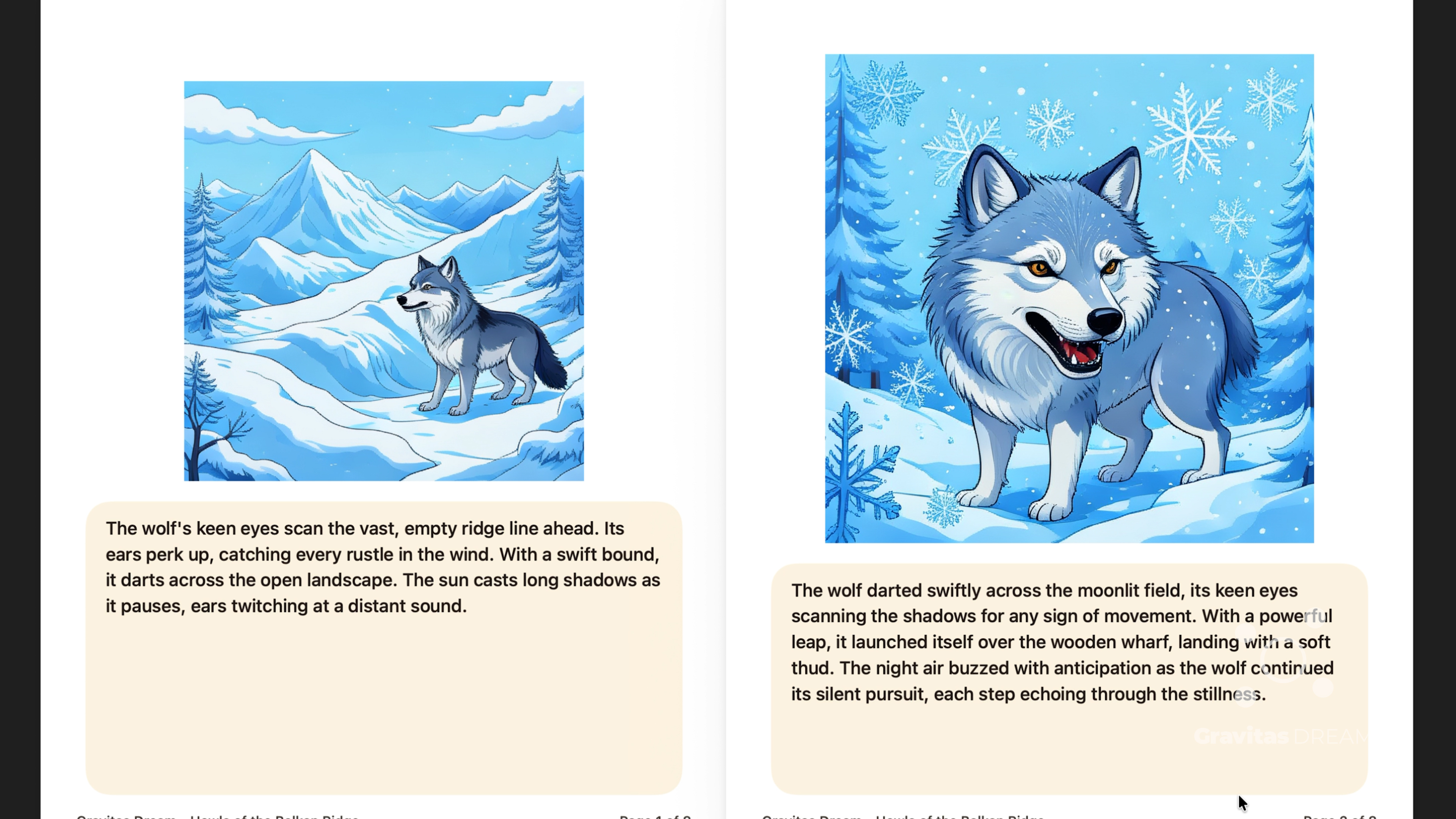
Export: PDF • Movie • Sora • Template
Privacy: On-device • no account required
Price: $4.99
Status: Available Now (App Store)
App Store: View on App Store
TestFlight: Join Beta
Product page: gravitasdiscover.com/gravitas-dream.html
Press contact: Rich Fallat — rich.fallat@gravitasdiscover.com
Website: gravitasdiscover.com
Reviewers: you can cast real people using reference images; please use images you have permission to use.
Key Features
- Immersive inspiration board: A curved wall of illustrated panels you can scan like a gallery.
- Cast characters your way: Curated packs or reference images to keep people (and pet looks) consistent across panels.
- Full illustrated chapters: Generate an entire scene (8 panels by default), then tap Continue when you’re ready for the next beat.
- Separation of writing vs visuals: Captions are written for reading. Image prompts are written for rendering.
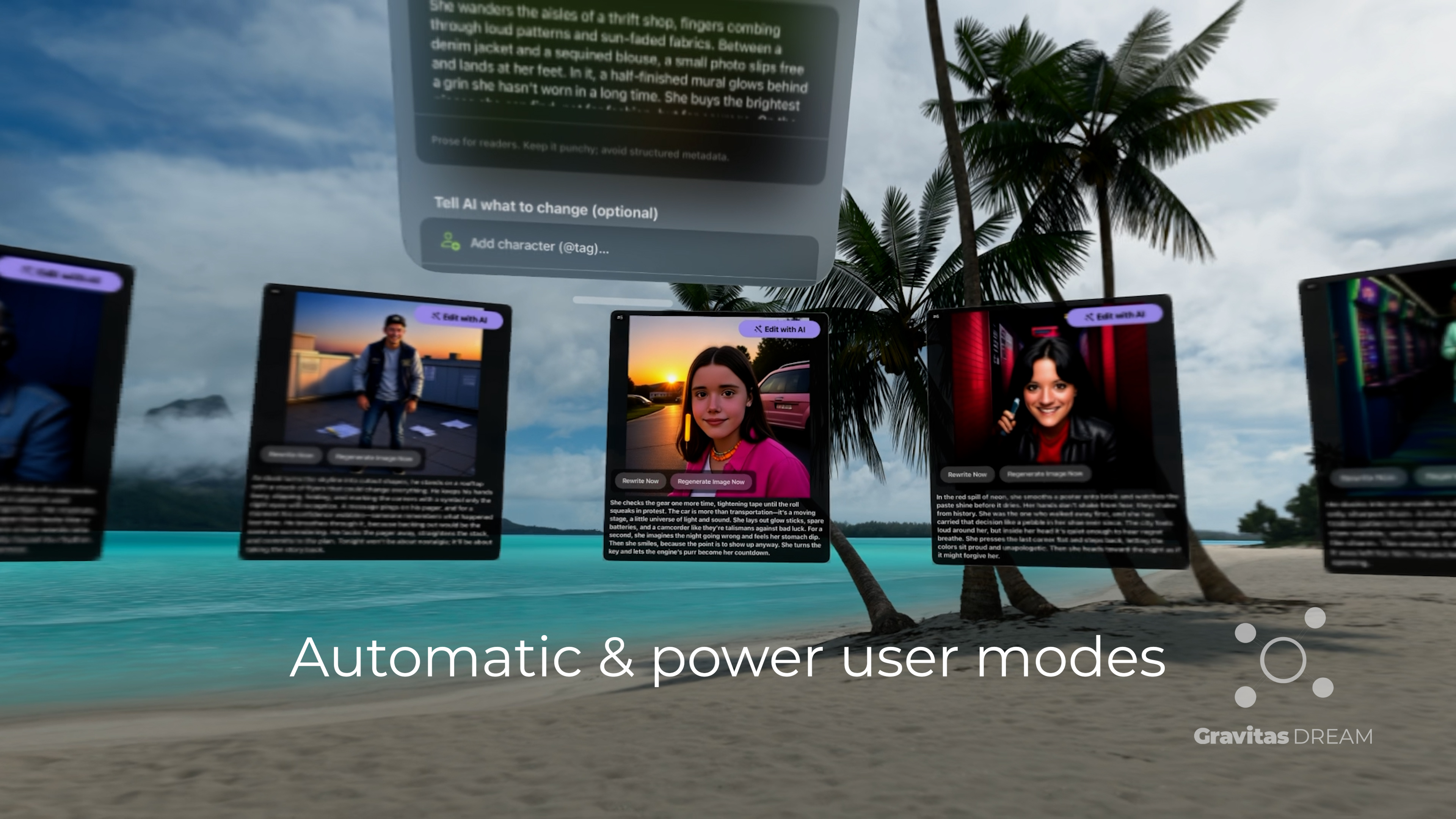
- Fast iteration controls: Rewrite captions, regenerate images, reorder/delete panels, and “Tell AI what to change” for quick direction.
- Approachable on-device generation (where available): Iterate with Apple Intelligence + Image Playground, and keep your work stored locally.
- Exports: PDF • Movie • Sora • Template.
Technical Details
- Device/OS: Apple Vision Pro • visionOS 26.1+.
- Input: Gaze + pinch + taps (standard Vision Pro interactions).
- Privacy: Stories are created and stored on-device; no account required.
- AI features: Generation and editing rely on on-device Apple Intelligence features where available.
Onboarding Notes
Concept: Gravitas Dream is built around separation of concerns: write captions like prose, and keep image prompts literal.
Start a Story Your Way
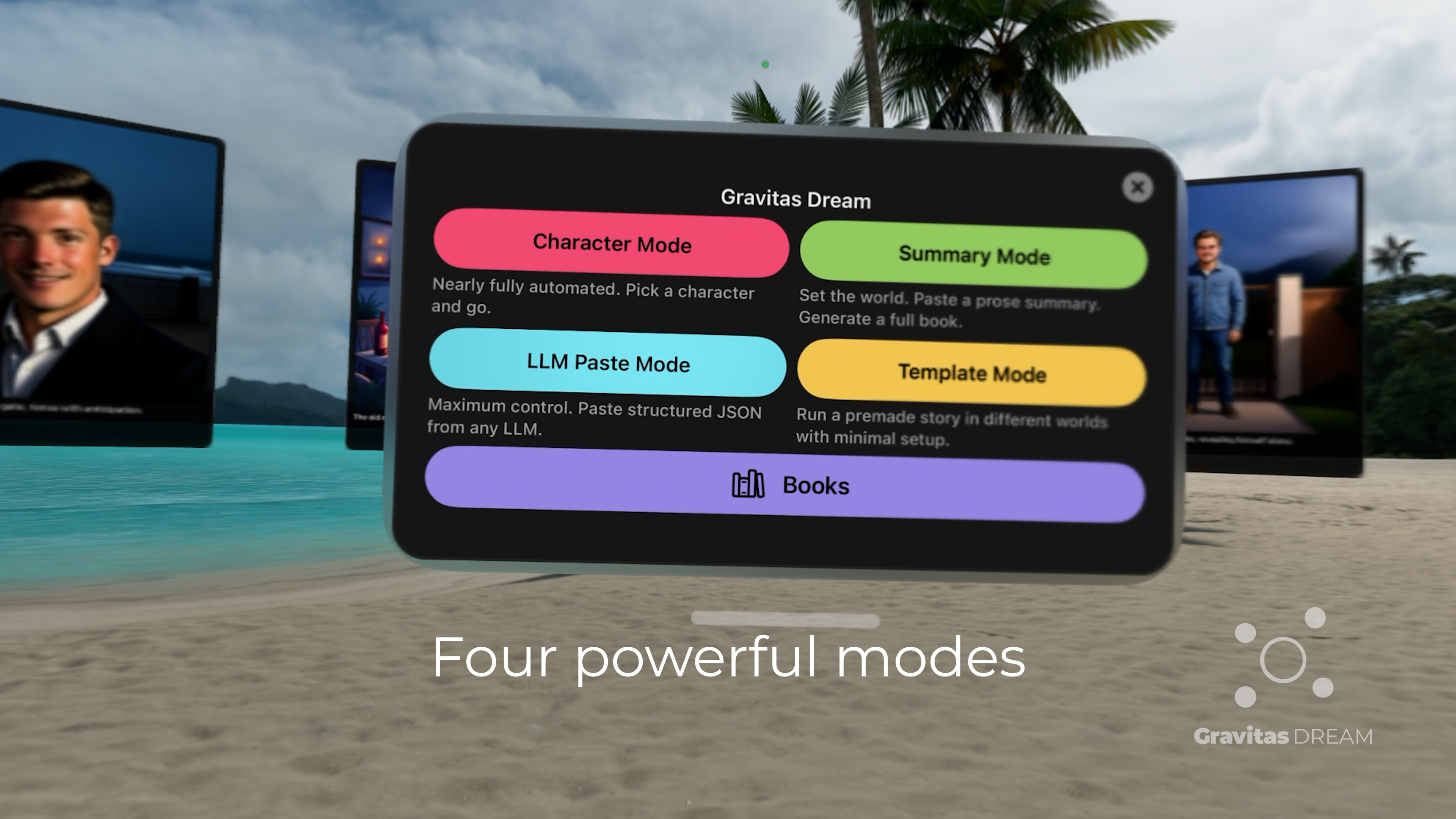
- Character Mode: Fast, automated scene generation—pick a character and go.
- Summary Mode: Paste prose and turn it into a panel‑by‑panel outline. You choose the panel count (8 by default).
- Template Mode: Reuse a story structure—pick an included example, or export your own finished story as a template and re‑run it with a new cast/world/tone.
- LLM Paste Mode: Paste a structured outline JSON and generate exactly what you wrote.
Quick Start
- Choose a mode: Character / Summary / Template / LLM Paste.
- Cast characters: Choose from curated packs or upload reference images in the Character Library.
- Generate Chapter 1: Tap Launch Inspiration Board to generate your first 8 panels.
- Continue: Tap Continue whenever you’re ready for the next chapter.
- Edit panels (when available): Rewrite captions or regenerate images without losing the rest of the chapter.
- Export: PDF / Movie / Sora / Template.
Best Practices for Clean Results
- Cast first: Lock in identity and wardrobe before you iterate.
- Keep captions story-forward: Voice, tone, subtext — not setting strings.
- Keep prompts concrete: Wardrobe, setting, time of day, weather, actions, framing.
- If an image fails: Simplify the prompt, keep one on-screen character per panel, and regenerate a few times.
Screenshots
Logos & Press Assets
Contact
Press & review requests: rich.fallat@gravitasdiscover.com
- Website: gravitasdiscover.com
- Product page: gravitasdiscover.com/gravitas-dream.html
- App Store: Available Now
- TestFlight: Join Beta Program
See More Gravitas Apps
Part of the Gravitas Recommendation Engine Protocol (GREP)
Shopify Merchant App Discover Chrome App Reddit Chrome App Gravitas Dark Matter Threads Vision Pro Gravitas Reader Gravitas Crunch Gravitas Dream Gravitas Album