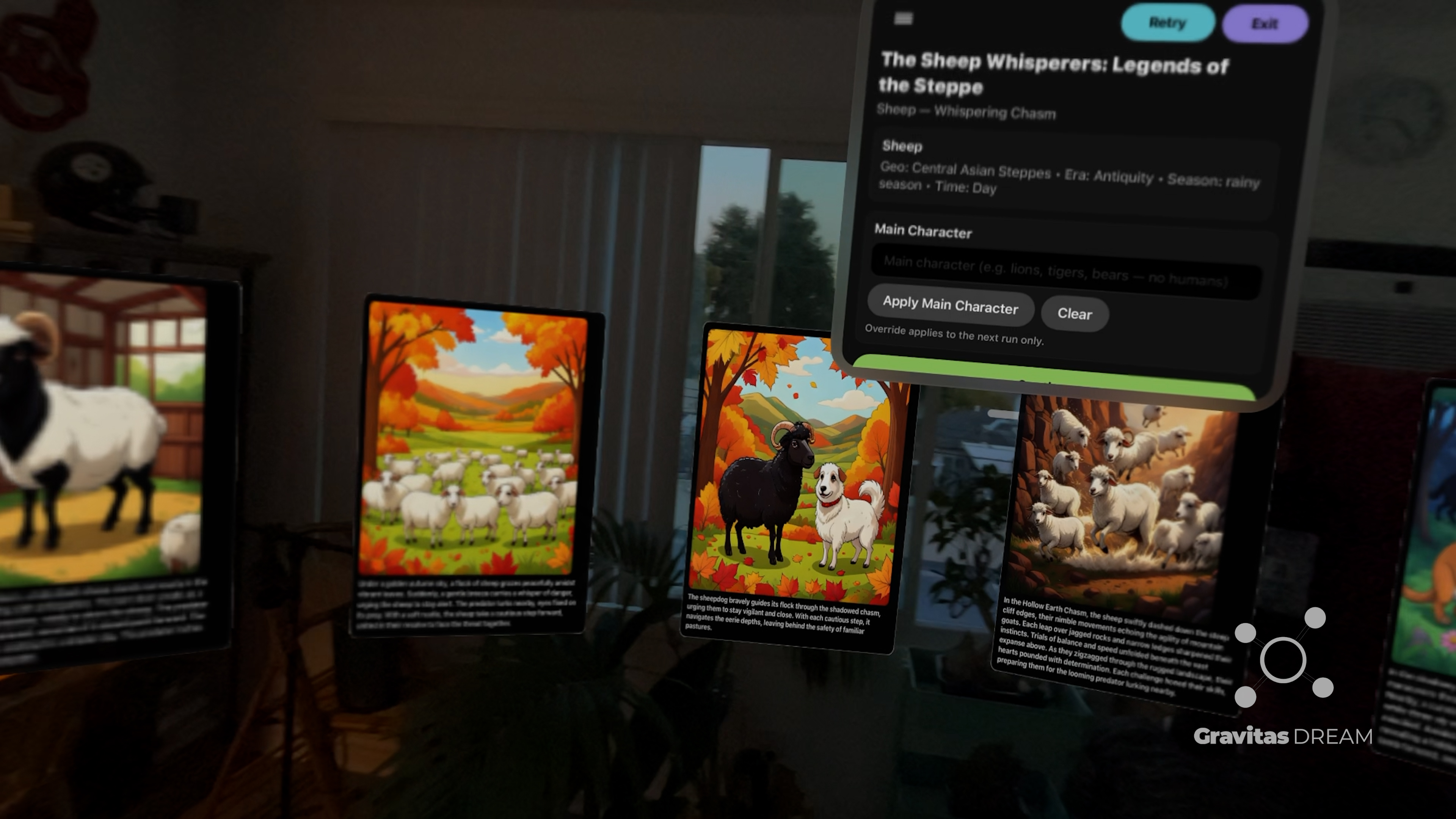
Gravitas Dream is a visionOS app for Apple Vision Pro that turns your cast into an illustrated, chapter‑by‑chapter story—displayed as a curved wall of story cards you can scan like a gallery, plus simple 2D windows for precise control.
It’s built for serious, character‑driven scenes, but stays safe and approachable on‑device: generate a scene, refine the writing and visuals separately, then export and share.
Exports: PDF • Movie • Sora • Template
What it is
Gravitas Dream is a graphic novel studio designed around two truths:
Great captions read like prose.
Great images need literal direction.
So the app keeps them separate:
Captions stay expressive and story‑forward (voice, subtext, pacing).
Image prompts stay concrete (wardrobe, setting, time of day, weather, actions, framing).
You can cast real people, pets, or original characters with reference images, keep looks consistent across panels, and iterate as much as you want using on‑device Apple Intelligence and Image Playground (where available).
Start a story your way
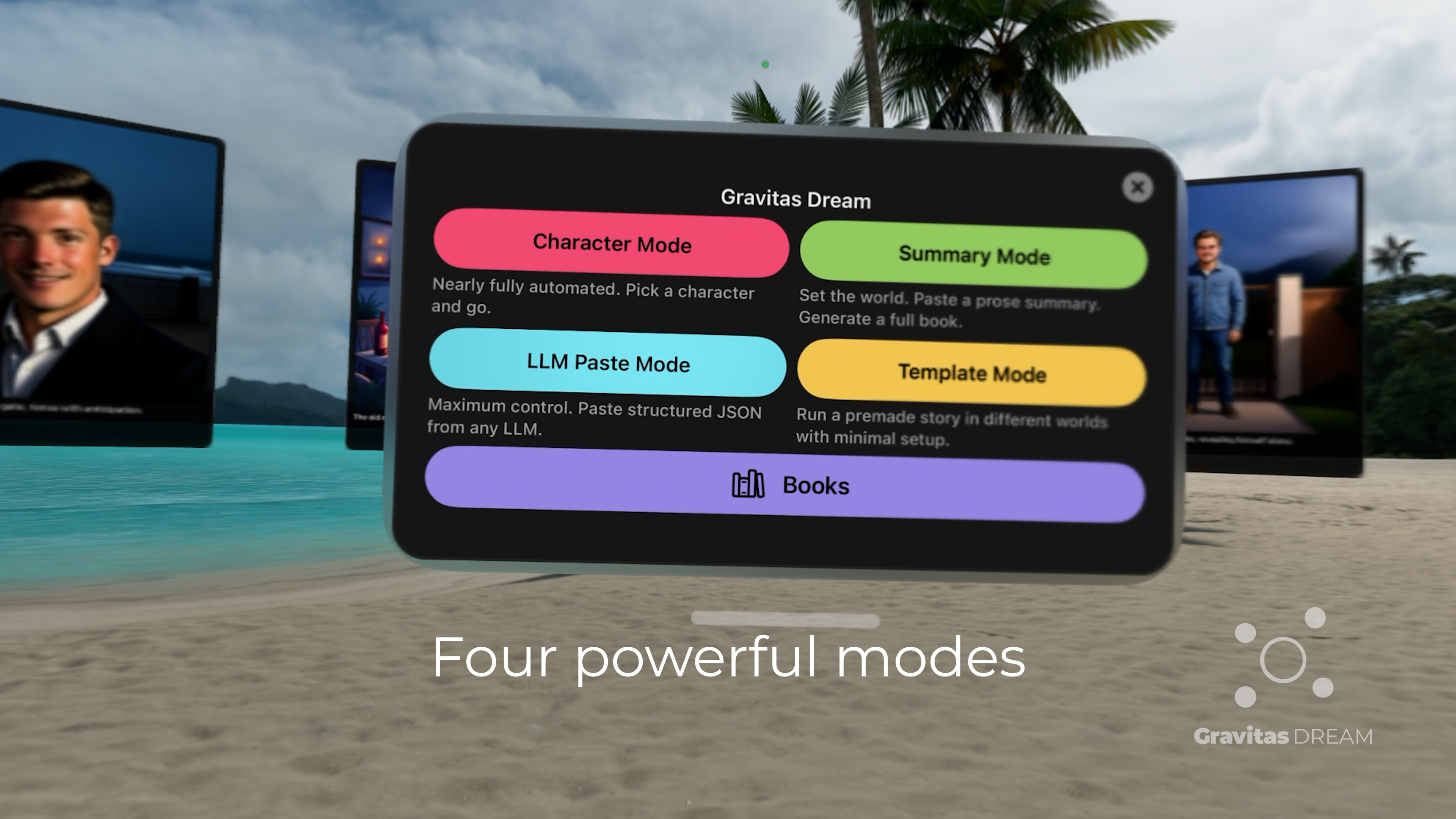
Gravitas Dream has four modes—each one creates the initial set of panels differently, but editing works the same after generation.
Character Mode
Fast, automated scene generation—pick a character and go.
Summary Mode
Paste prose and turn it into a panel‑by‑panel outline. You choose the panel count (8 by default), and the app “squashes or stretches” the summary into that many beats.
Template Mode
Use a reusable story structure—either:
pick an included example story (like Pride and Prejudice), or
export your own finished story as a template, then re‑run it with a new cast, new world settings, or a different tone—without rewriting the structure from scratch.
LLM Paste Mode
Full control: paste a structured outline JSON and generate exactly what you wrote.
How it works
Open Gravitas Dream on Apple Vision Pro. You’ll see:
An immersive space for the inspiration board (the curved wall of panels)
2D windows for controls, story text, and editing
Typical flow
Cast your characters: choose from curated packs, or upload reference images in the Character Library (thumbnails‑first).
Generate a scene: start with an 8‑panel chapter. While generating, you’ll see Generating scene… plus a Thinking: m:ss timer.
Continue the story: tap Continue to generate the next chapter.
Edit panels without losing progress: rewrite captions without touching visuals, regenerate images without rewriting the prose, and reorder, delete, and reflow the sequence.
Export your work: PDF • Movie • Sora • Template.
Features
Immersive inspiration board: A curved wall of illustrated panels you can scan like a gallery—ideal for shaping pacing, tone, and continuity.
Cast characters your way: Pick from curated packs or upload reference images to keep people (and pet looks) consistent across panels.
Full illustrated chapters: Generate an entire scene, then hit Continue when you’re ready for the next beat.
Separation of writing vs visuals: Captions are written for reading. Image prompts are written for rendering.
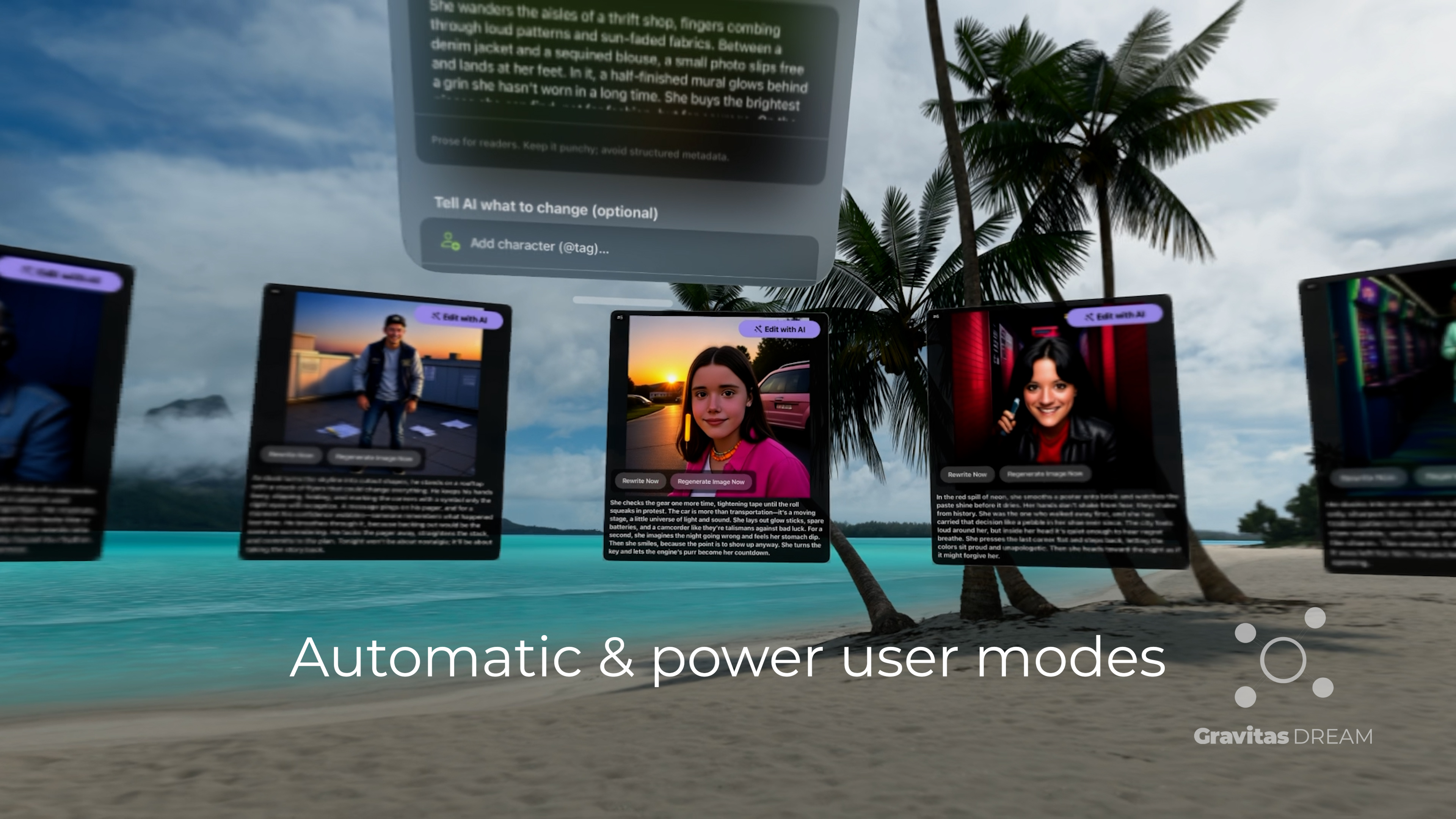
Fast iteration controls:Rewrite Caption, Regenerate Image, and “Tell AI what to change” for quick direction like “make it rain at night” or “switch to golden hour.”
Fine‑grain panel editing: Reorder panels, delete panels, and reshape the sequence without starting over.
Approachable on-device generation (where available): Iterate with Apple Intelligence + Image Playground, and keep your work stored locally.
Exports: PDF • Movie • Sora • Template.
Editing & customization
Gravitas Dream is simple up front, but gives you director-level control once you’re in.
Cast and character references
Character Library (thumbnails): Upload one or more reference images per character. These references are used during image generation to stabilize identity and continuity.
Casted characters per panel: Panels can include specific cast members. If you support multiple expressions, you can save expression references (smile, fear, anger) and select them per shot.
Using @tags (optional, powerful): Use @tags to place a cast member into a specific panel, e.g. @Mara steps into the hallway, @Dad looks surprised, or @Biscuit the dog waits by the door.
Captions vs Image Prompts (decoupled)
Each panel has two editable fields:
Caption (prose): What the reader reads. This is where your voice lives: suspense, tone, internal tension, humor, cliffhangers.
Image Prompt (literal): What the renderer uses. This should stay concrete and visual: setting/era, time of day, weather, wardrobe, actions, framing, lighting.
Rule of thumb: if it’s visual and repeatable (wardrobe/weather/time), put it in the image prompt—not the caption.
Editing a specific panel (when available)
Enter edit mode: Tap Edit with AI to enable panel tools.
Find the panel: Each panel shows a number badge (like #3) and an Edit button.
Tell AI what to change: Type a quick instruction like “make it rain at night” or “move this to an amusement park.”
Rewrite Caption: Polish the prose without changing the visual prompt.
Regenerate Image: Iterate the art using the current Image Prompt (and any typed change request) without rewriting the caption.
Explicit overrides: You can directly edit caption text for fine-grain writing control and image prompt text for literal visual control.
Reorder or delete: Move a panel to a new slot or delete it entirely—your chapter stays intact.
Recommended workflow
Cast first: Choose or upload your main character(s) so identity stays consistent from panel one.
Establish the look: Iterate on image prompts + Regenerate Image until wardrobe, setting, time of day, and weather feel right.
Lock the story beats: Use Summary Mode to convert prose into panels quickly, or Template Mode to replay a proven structure with new casts/worlds.
Polish: Rewrite captions for reading quality, regenerate images for the final visual pass, then export.
Exports
Exports are designed for sharing, playback, and reuse:
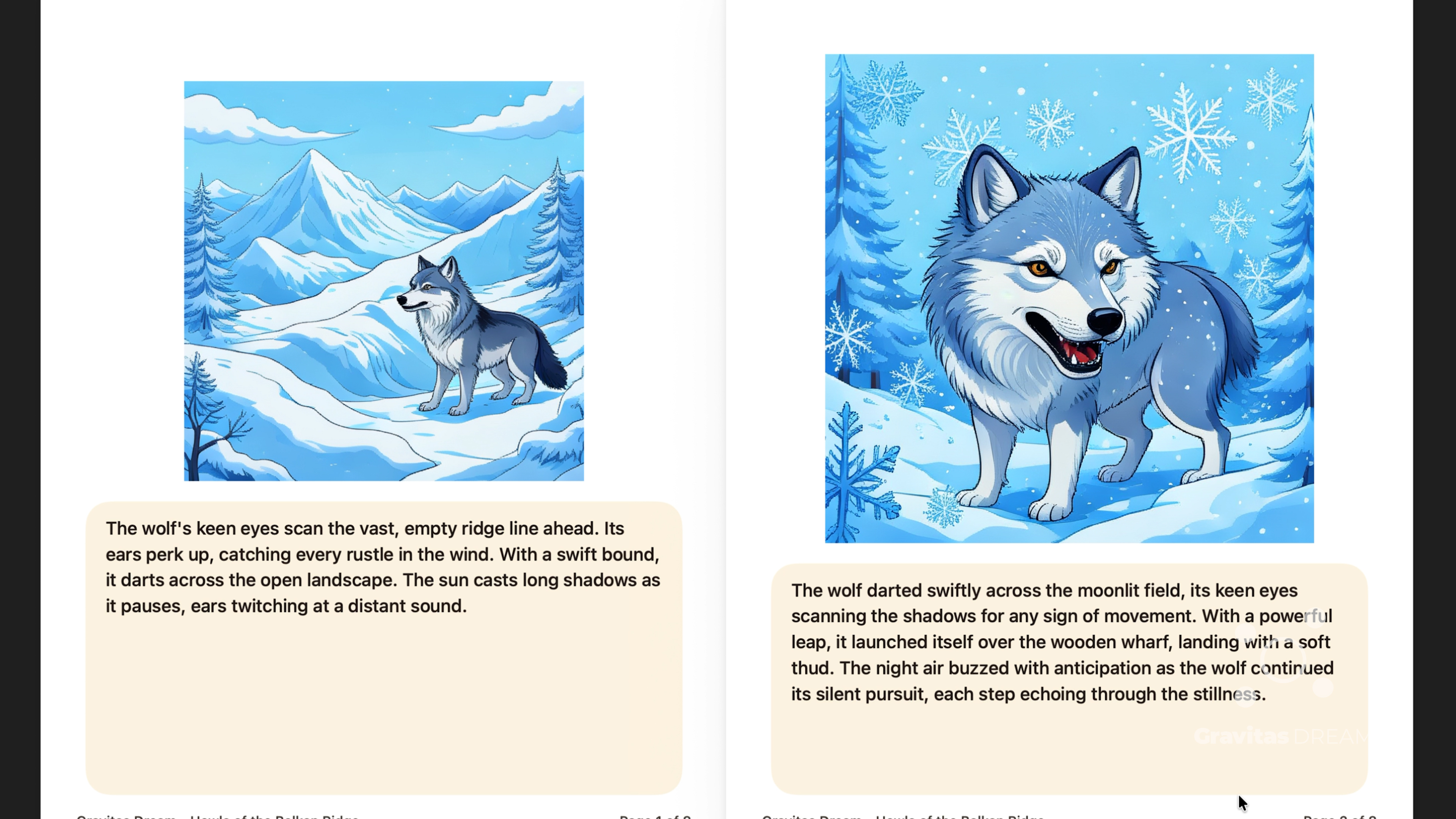
PDF: A shareable, printable version of your story.
Movie: Turn a chapter into a simple video playback format for quick sharing.
Sora: Export a “Trailer Pack” (prompts + narration) for external video workflows.
Template: Save a finished story structure as a reusable template, then regenerate it with a different cast, different world settings, or a different tone.
Books library: Save stories to your library and reopen them anytime.
Delete anytime: Select a story in Books and tap Delete to remove it from this device.
FAQ + Troubleshooting
Quick help
Start a new story: Choose a Mode → Cast → Start
Generate the next chapter: Continue
Edit a panel: Edit with AI → Rewrite Caption / Regenerate Image / Reorder / Delete
Export: PDF / Movie / Sora / Template
Reopen saved stories: Books
FAQ
How do I start a new story? Open the Control Panel → cast characters (choose or upload) → tap Launch Inspiration Board.
Can I use real people as characters? Yes. Upload character reference images in the Character Library and cast them into the story. Use references you have permission to use.
Why do captions and image prompts look different? Captions are written for readers. Image prompts are written for rendering. Keeping them separate improves both story quality and image reliability.
How do I change a character mid-story? Update the cast selection for the next chapter or cast different characters into a specific panel during editing.
Troubleshooting
“No panels yet”: You haven’t generated Chapter 1. Tap Launch Inspiration Board.
Stuck on “Generating scene…”: The Thinking: m:ss timer shows the current attempt. Use Retry to start fresh.
Rewrite failed: Try a shorter, more specific instruction, then try again.
Why did an image fail?
On-device image generation can be sensitive. If a panel fails or looks off:
simplify the image prompt (use simpler words),
keep the scene focused on one on-screen character per panel,
try fewer “extra people” concepts,
regenerate a few times.
If you’re using @tags and the generator rejects them, try temporarily removing the tag and using the character name in plain text—then reintroduce tags once the shot is stable.
No account required: Stories are created and stored on-device.
Saved stories: Stories you save appear in Books. You can delete them anytime.
AI features: Generation and editing rely on on-device Apple Intelligence features where available, and may not appear or succeed on every device configuration.
Sharing:Share PDF exports a PDF; you choose where it goes via the system share sheet.